Send to Cloud
- Make sure all requirements above are met.
- Login as an admin into the target Windows computer.
- Connect the LLIMAGER-win drive containing
LLIMAGERW.exeand the license key file (llimagerw.lic). - On your USB drive, navigate to
\llimagerand double-clickLLIMAGERW.exe, then select Send to Cloud from the Home screen.
License requirement: Send to Cloud requires a Standard license. Under a Trial or Portal-Trial license, selecting this module displays a message stating the feature requires a Standard license. See Licensing.
For examiners and e-discovery services providers with cloud storage availability, LLIMAGER-win includes a feature to copy completed images to AWS, Google Cloud, or Azure.
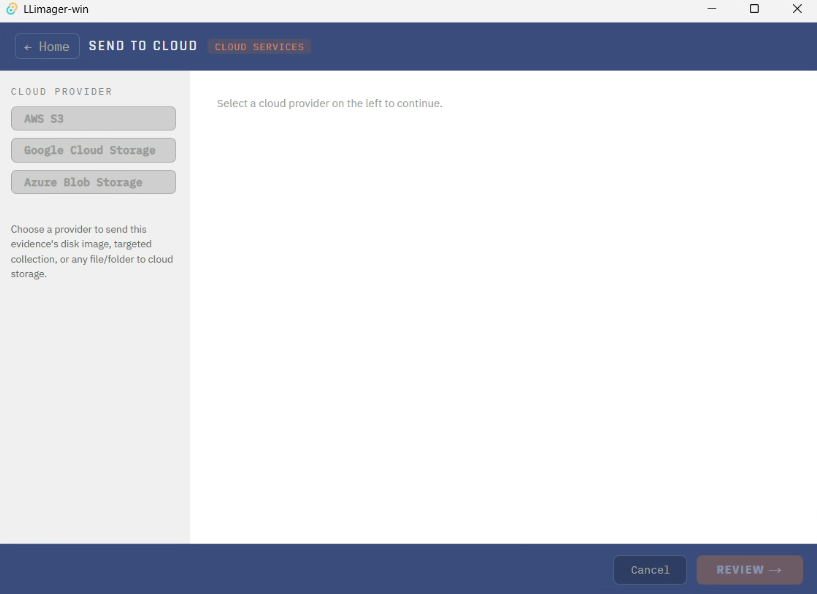
Upon clicking Send to Cloud, the main interface displays two primary sections: the left pane provides general information regarding the prerequisites for using each supported cloud service, while the right pane presents the service selection interface.
Cloud Authentication Requirements
Specific authentication requirements for each service are as follows:
Amazon Web Services (AWS)
Uploads to AWS require two credentials: a Client ID and a Secret ID. These credentials can be readily obtained through the AWS Management Console.
Google Cloud Platform (GCP)
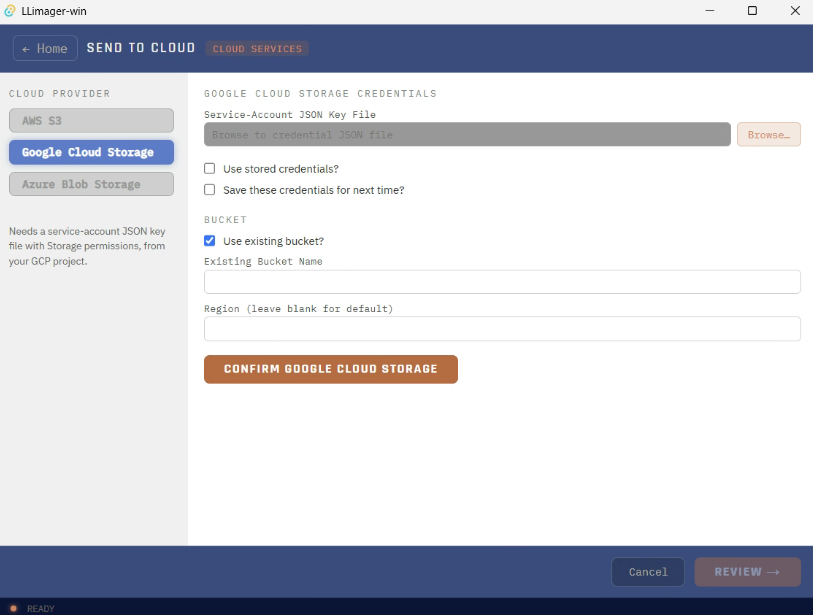
Uploads to GCP require a credential JSON file, accessible through the user's Google Cloud account.
Azure Storage
Uploads to Azure Storage require two credentials: the Account Name and one of the two Secret Keys associated with that account. These keys are provided by Azure.
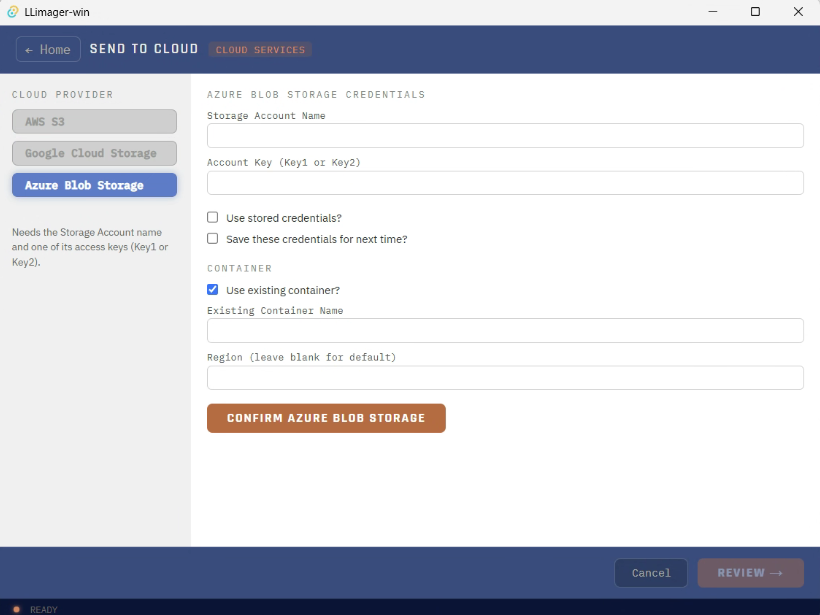
For enhanced security and streamlined access, all credentials can be securely stored (password-protected) on the LLIMAGER-win device. The interface also provides a preview of the anticipated upload speed within the target environment.
For example, to use AWS:
Enter the two required AWS credentials, Client ID and Secret ID, in the designated fields. Users have the option to select an existing bucket or create a new one. For most users, the default AWS region is recommended — leave the AWS Region field blank.
To save the AWS credentials for future use, click "Save Credentials?" and a password prompt will appear to add a password. Previously saved credentials can be retrieved by clicking "Use Stored Credentials?" — selecting this disables "Save Credentials."
Upon pressing OK, select the image or folder to be uploaded.
Once the credentials have been entered and the file or folder to upload has been selected, a review screen displays all fields entered (credentials masked). Click the Transfer File button to begin the upload.