Convert / Hash
- Login as an admin into the target Windows computer.
- Connect the LLIMAGER-win drive containing
*LL**IMAGERW***.exeand the license key file (llimagerw.lic). - On your USB drive, navigate to
\llimagerand double-click*LL**IMAGERW***.exe, then select Convert/Hash from the Home screen.
License requirement: Convert/Hash requires a Standard license. Under a Trial or Portal-Trial license, selecting this module displays a message stating the feature requires a Standard license. See Licensing.
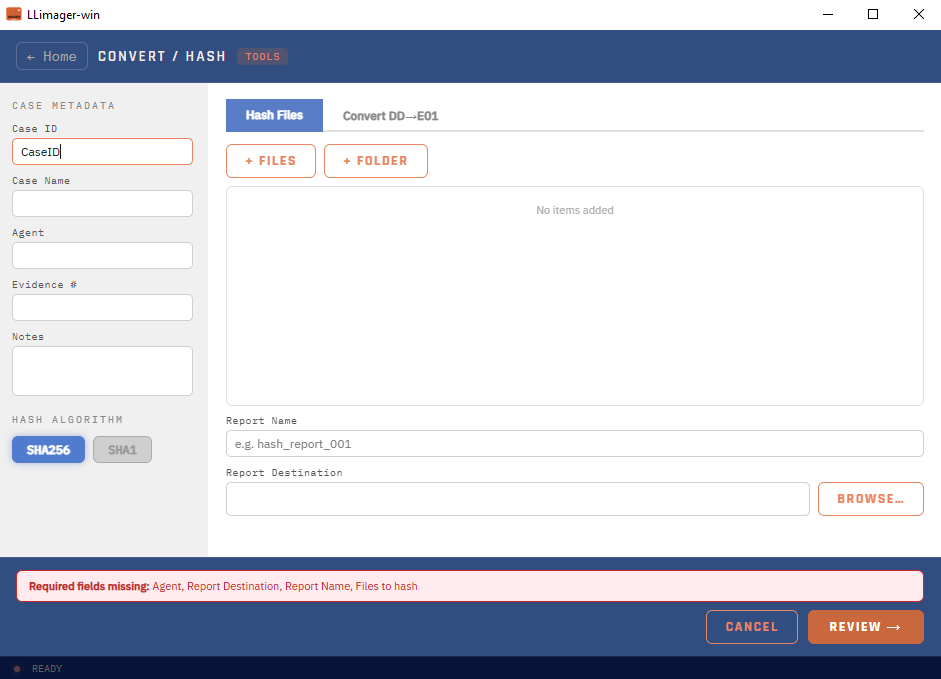
The Convert/Hash module bundles two separate forensic utilities, selected via tabs at the top of the screen: Hash Files and Convert DD→E01. Case metadata (Case ID, Case Name, Agent, Evidence #, Notes) and the hash algorithm (SHA-256 or SHA-1) are entered once on the left and apply to whichever tab is active.
Hash Files
Use this tab to compute and log hash values for an arbitrary set of files and/or folders, without performing an acquisition or conversion.
- Click + Files and/or + Folder to add items to the list. Items can be removed individually with Delete.
- Enter a Report Name and select a Report Destination.
- Click Review to open the summary screen, which lists every file/folder to be hashed, the selected hash algorithm, and the report name/destination.
- Click Start Hashing to begin.
While hashing, the screen shows the current file (e.g., "File 3 of 12"), a per-file progress bar, overall percentage, and elapsed time. On completion, a Hash Results panel reports the total number of files, total size, and the path to a CSV file listing every item's individual hash value.
Convert DD→E01
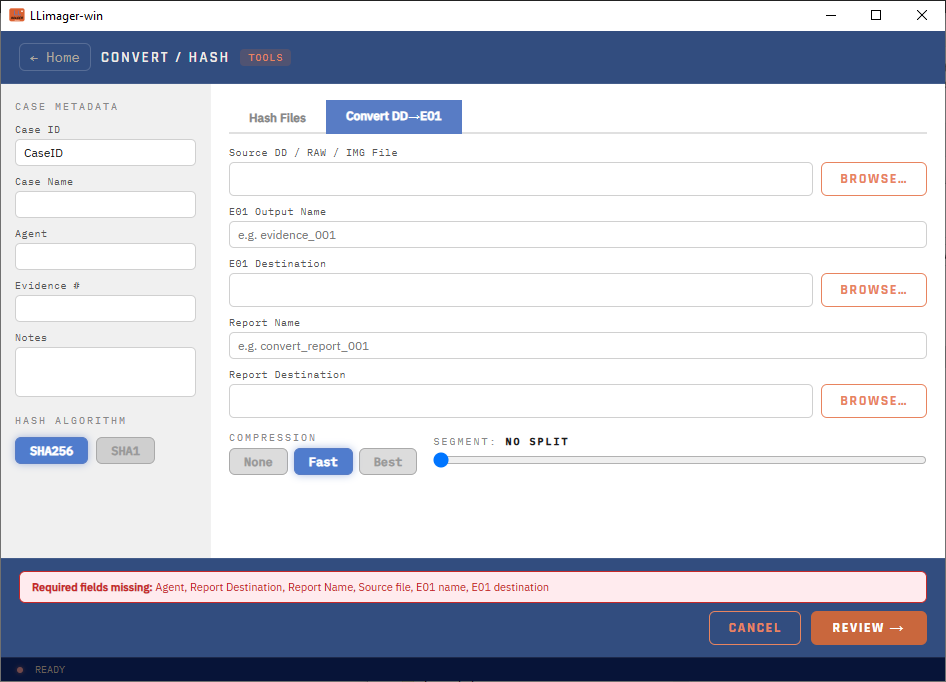
Use this tab to convert an existing raw disk image (DD, RAW, or IMG) into a compressed E01 (EWF) forensic container.
- Click Browse… to select the Source DD / RAW / IMG File.
- Enter the E01 Output Name (pre-filled from the source filename) and select the E01 Destination.
- Enter a Report Name and select a Report Destination.
- Choose Compression: None, Fast, or Best.
- Set the Segment Size slider — "No split" or a fixed size up to 5 GB per segment.
- Click Review to open the summary screen, which lists the source file, E01 name/destination, compression, segment size, hash algorithm, and report name/destination.
- Click Start Conversion to begin.
While converting, the screen shows the source file path, overall progress percentage, transfer speed (MB/s), elapsed time, and bytes processed. On completion, a Conversion Complete panel reports the output E01 path and the computed hash value.
Reporting
Both Hash Files and Convert DD→E01 conclude by generating a report and then signing and sealing it into a tamper-evident PDF, matching the format used by Disk Image and Targeted Collection acquisitions.