User Management
User Roles
LLSmartVerify uses role-based access control (RBAC):
| Role | Permissions |
|---|---|
| Standard | for licensee users, can see all information associates with the LLIMAGER licenses they have purchased |
| Third‑Party | Users that can verify transactions for free (Either using the LLIMAGER Companion app or the LLSmartVerify Portal) |
| Admin | For Portal adminsitrative purposes |
Note: Standard and Third-Party users must autheticate before using the LLSmartVerify Portal or LLIMAGER Companion app
Adding a New User
Adding a Standard (Licenseed) User
Standard Users in the Portal
Standard Users are added to the LLSmartVerify Portal at the time they acquire the LLIMAGER license and the right to use the Portal. They will receive a verification email which must be confirmed to secure their access credentials.
Adding a Third Party User
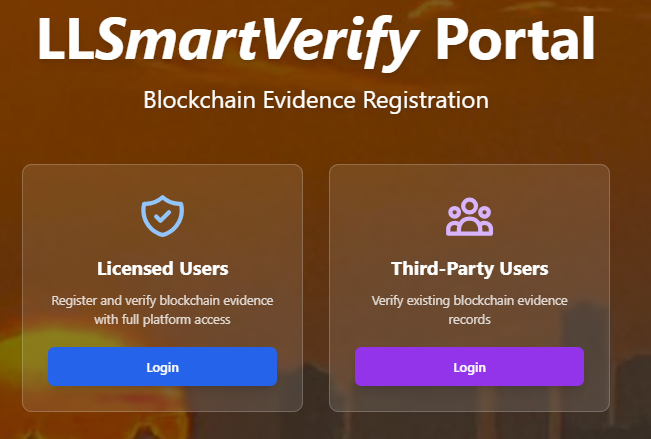
Visit https://llsmartverify.llimager.com and select "Third-Party Users".
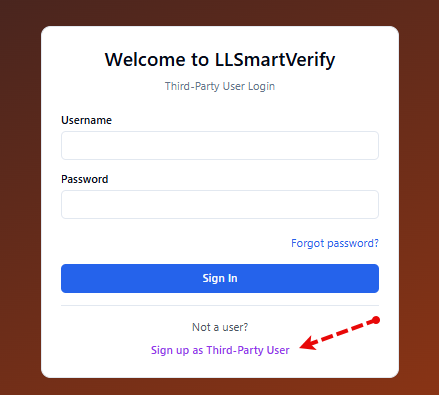
Select (click on the link) "signup as third-party user".
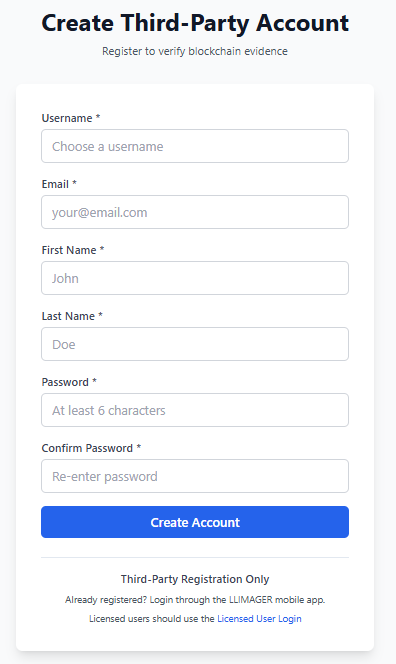
On this page, fill the required information and click "Create Account" Button. The Portal will send a confirmation email with a link valid for 24 hours. You need to click on this link to complete your registration. Then, you can login with the same credentials either at the LLSmartVerify Portal or LLIMAGER Companion app.
Password Reset
Forgot password link could be activated by any user. When authenticated on the Portal, Standard (Licensee) users can change their password on their setting page.
- Admin → Users → [User] → Reset Password.
- The user receives a reset link via email valid for 24 hours.
Users can also reset their own passwords from the login page via Forgot Password.