Time Machine
- Make sure all requirements above are met
- Login as an admin into the target Mac computer
- Connect the LLIMAGER drive that contains the copy of the llimager.app and license key file (llimager.lic)
- Connect the destination disk (as needed)
- On your USB SSD, navigate to /llimager and double-click on “llimager.app” and once it launches, enter a local admin password and click the
button.
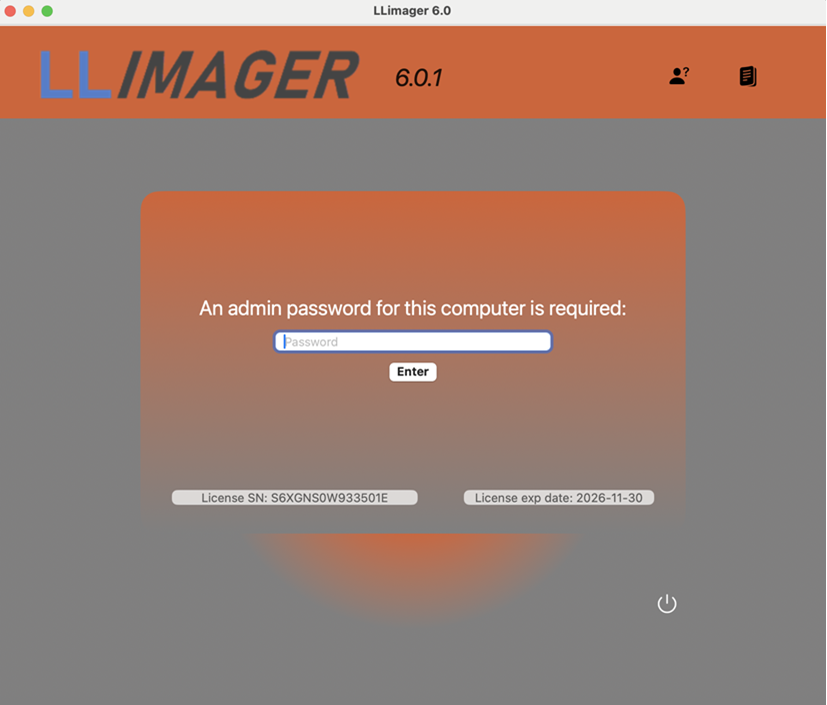
• On your USB SSD, navigate to /llimager and double-click on “llimager.app” and once it launches, enter a local admin password.
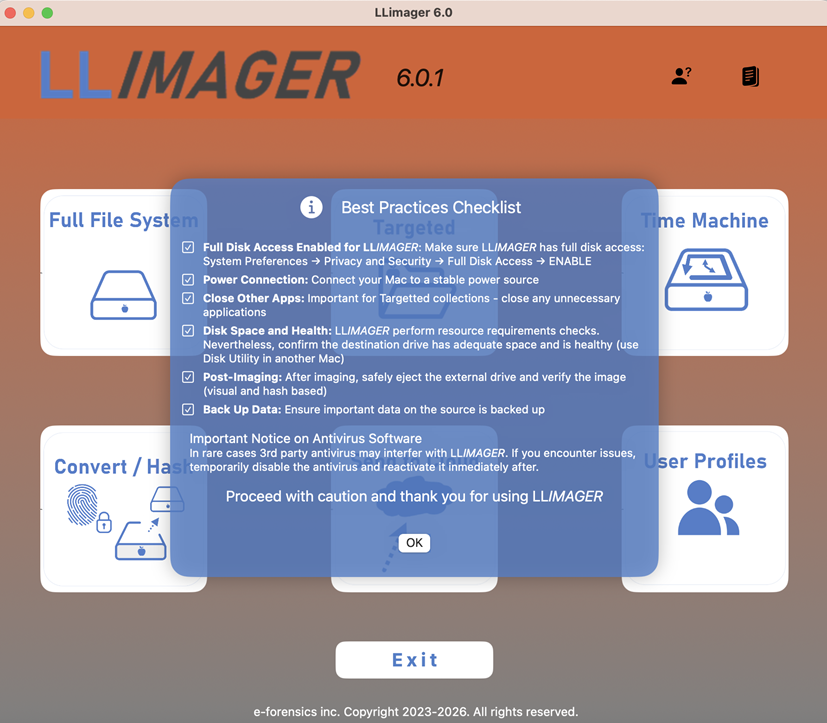
• Make sure to review the "Best Practices Checklist" and click OK when done. Then select the type of image you want to make
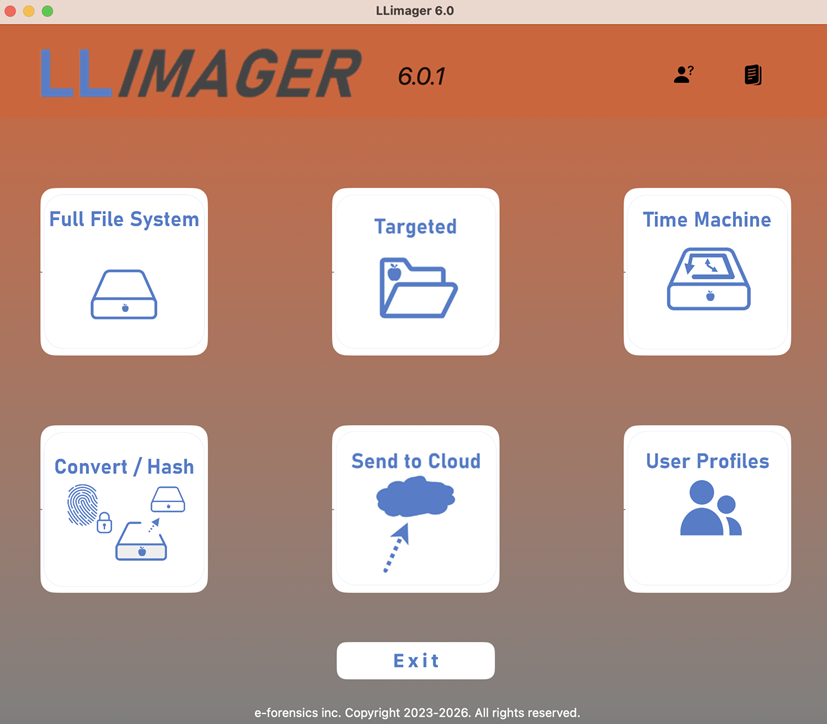
LLIMAGER Menu Options
Full File System
This option is equivalent to a full file system and allows the entire process of imaging the computer’s hard disk volumes’ active space, saving the image to a Mac sparse image container and then conversion of the image to a compressed DMG file, and calculating the hash value of the DMG file. During the process, there will be an option to fully automate the process by creating the final DMG or to just generate the sparse file.
Targeted
This option allows the imaging of targeted files/folders on the computer’s hard disk, saving the image to a compressed read-only DMG file, and calculating the hash value of the DMG file. It includes granular selection of documents and folders based on custom file types (extensions) and file system dates such as the birth time (creation), modified, accessed and the change time (inode delta). Moreover, profiles are available to save selections for future jobs.
Time Machine
A Time Machine-based disk image of the near-full data volume, including Trash folders, can be created using this feature. Unlike standard Time Machine backups, LLIMAGER 6.0 includes all Trash folders, which are typically excluded, and packages the image into a single DMG file. Note, Time Machine omits specific system, log, and cache files, thus this option is better suited for e-discovery rather than digital forensics workflows.
Convert/ Hash
This option allows the process of converting a sparse image file to a compressed DMG file, and to calculate the hash value of the DMG file.
Send to Cloud
Allows uploading of images to AWS, Google Cloud or Microsoft Azure using authentication keys and giving option to securely saving credentials for future uploads. Note, you can preview the upload speed on the environment where the upload process will be occurring.
User Profiles
This option allows the imaging of targeted user profile(s), saving the image to a ZIP or DMG file, and calculating the hash value.
Exit
This option will exit the application.
Creating Evidence files
The core workflow of the LLIMAGER app encompasses evidence capture, DMG file generation, and the creation of a signed, tamper-protected PDF log.
Before You Begin
- Confirm you are logged in the target Mac computer with valid local admin credentials
- Make sure you have enabled full disk access for the LLIMAGER app
Step 1 — Start a New Acquisition
- Click the Time Machine icon.
- The evidence creation form for Time Machine images will open.
Note, Time Machine backups, while valuable for general data recovery, intentionally exclude certain system folders and files to optimize backup size and performance.
Specifically, Time Machine omits volatile data within /private/var/folders/, temporary files from /private/var/tmp/ and /private/tmp/, cache files from /Library/Caches/ and /Users//Library/Caches/, and all user and system trash folders (~/.Trash, /Volumes//.Trashes/, and /.Trashes/). This exclusion of temporary and system-generated data is designed to focus on backing up essential user documents and settings.
However, LLIMAGER Time Machine backups do collect the Trash folders and bundles into the final DMG. Thus, making it a suitable image for e-discovery and depending on the scope, some digital forensics workflows.
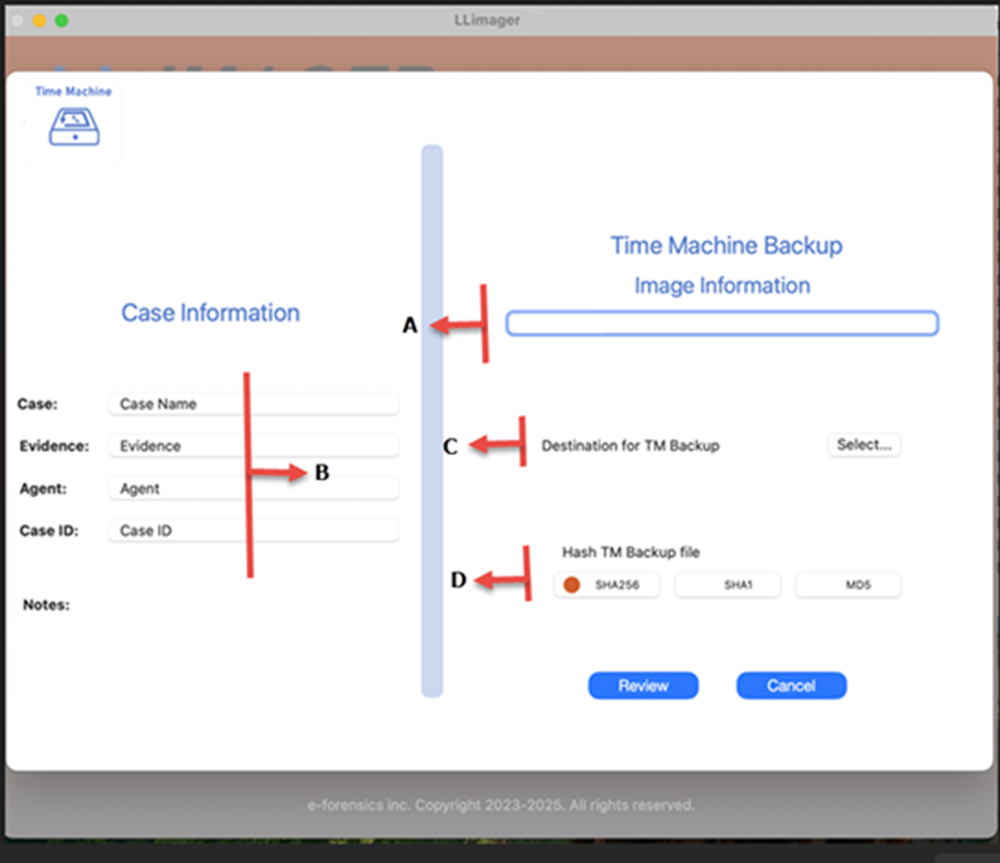
To proceed with the Time Machine imaging, Input the image destination name and location of the destination logical DMG file. Additionally, choose to hash and type of hash. The following picture shows the requested information.
Step 2 — Fill in Evidence Metadata
See description below for each section.
**A** – Specify the name of the image.

**B** - Related to the case. Case name, evidence number, agent, case ID and notes.

**C** – Related to the destination of the Time Machine DMG file. Requires selection of path where the DMG will be saved.

**D** – Related to hashing of the DMG file. Specify if the DMG will be hashed then specify the type of hash.
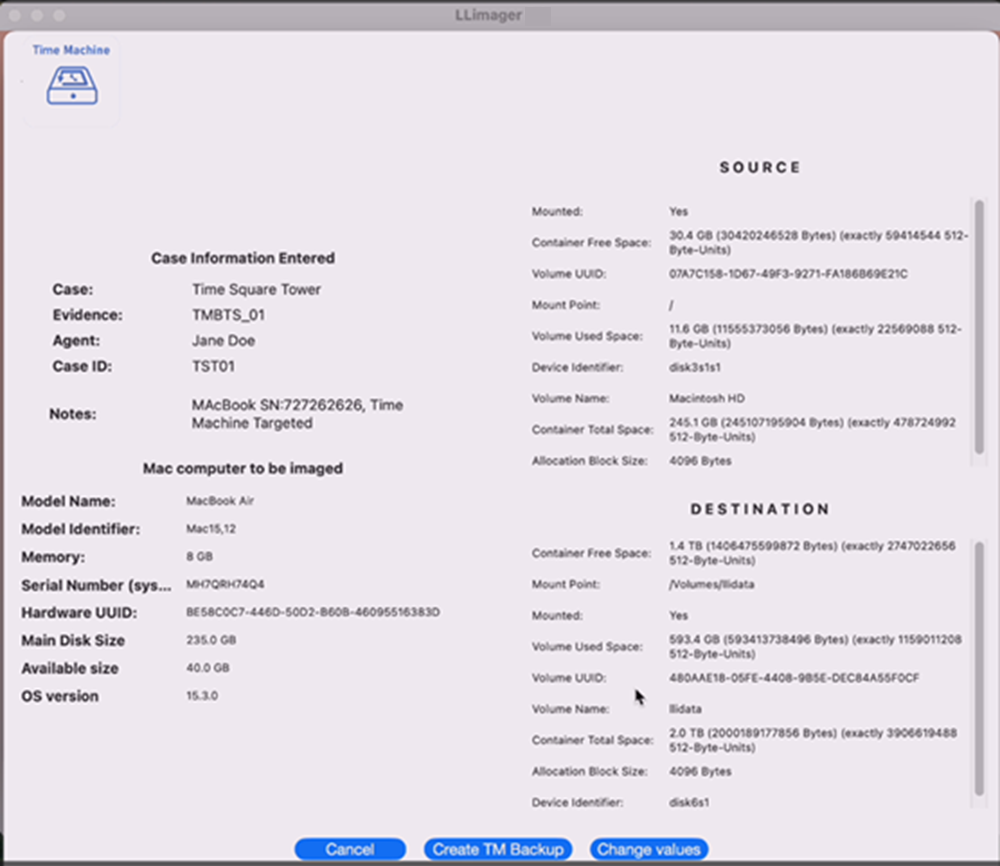
After completing the selections, a summary of the information provided; see below.
Step 3 — Create Image
After validating and accepting the information, click on “Create TM Backup” and the following will appear:
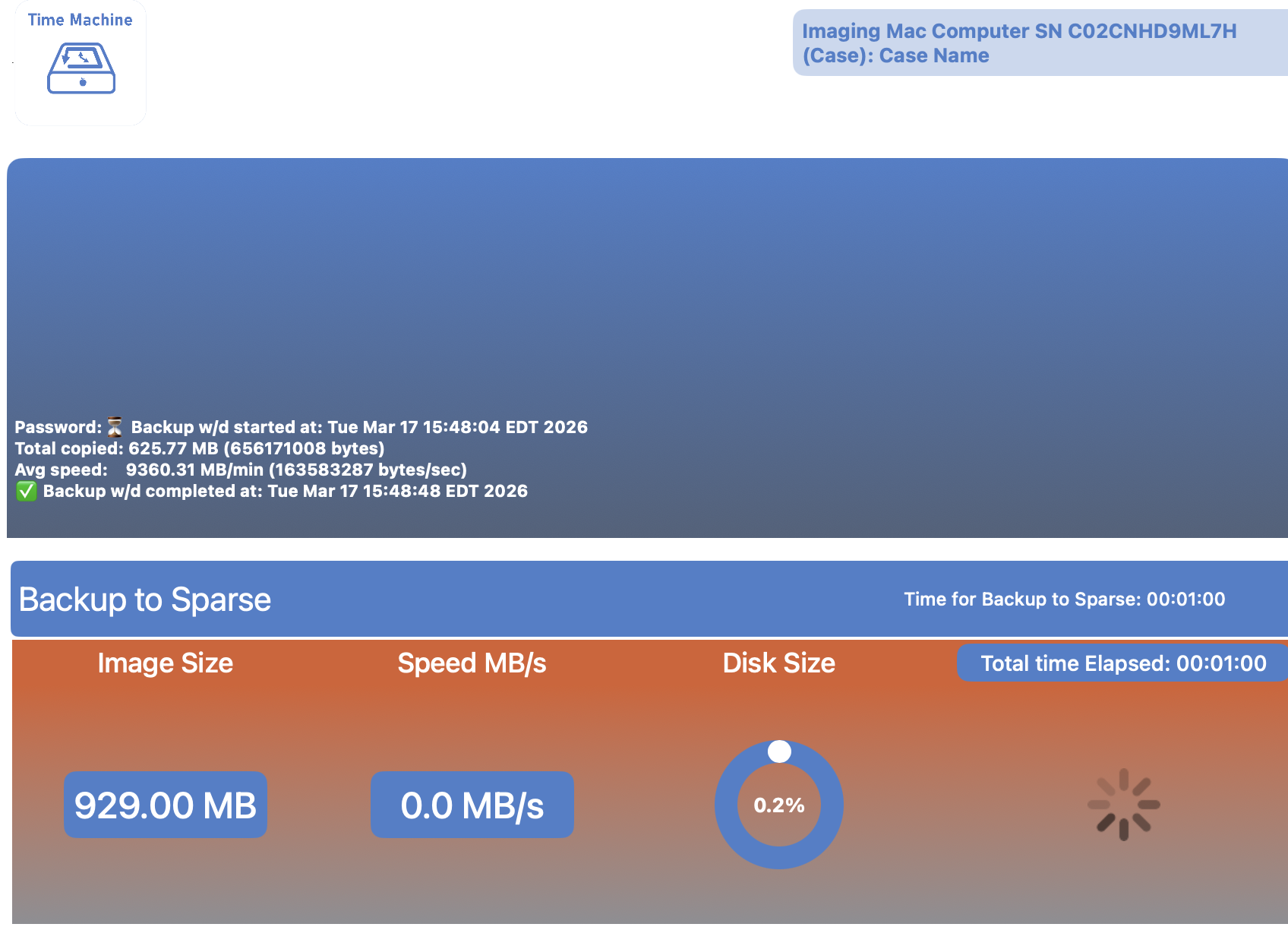
Click on “Click to start process” and as the process commences, a progress screen indicating that the DMG logical image is being generated will appear -- see below:
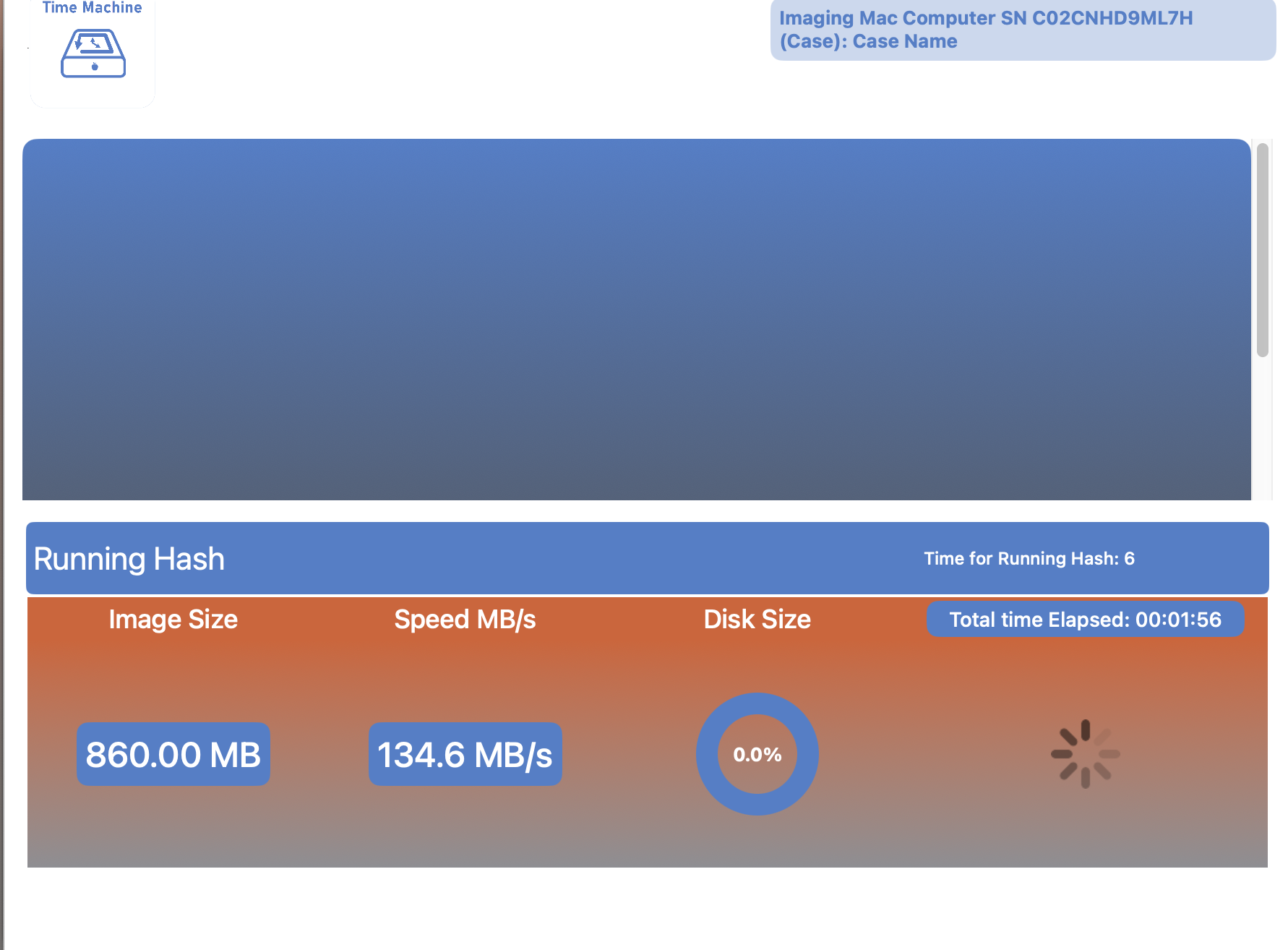
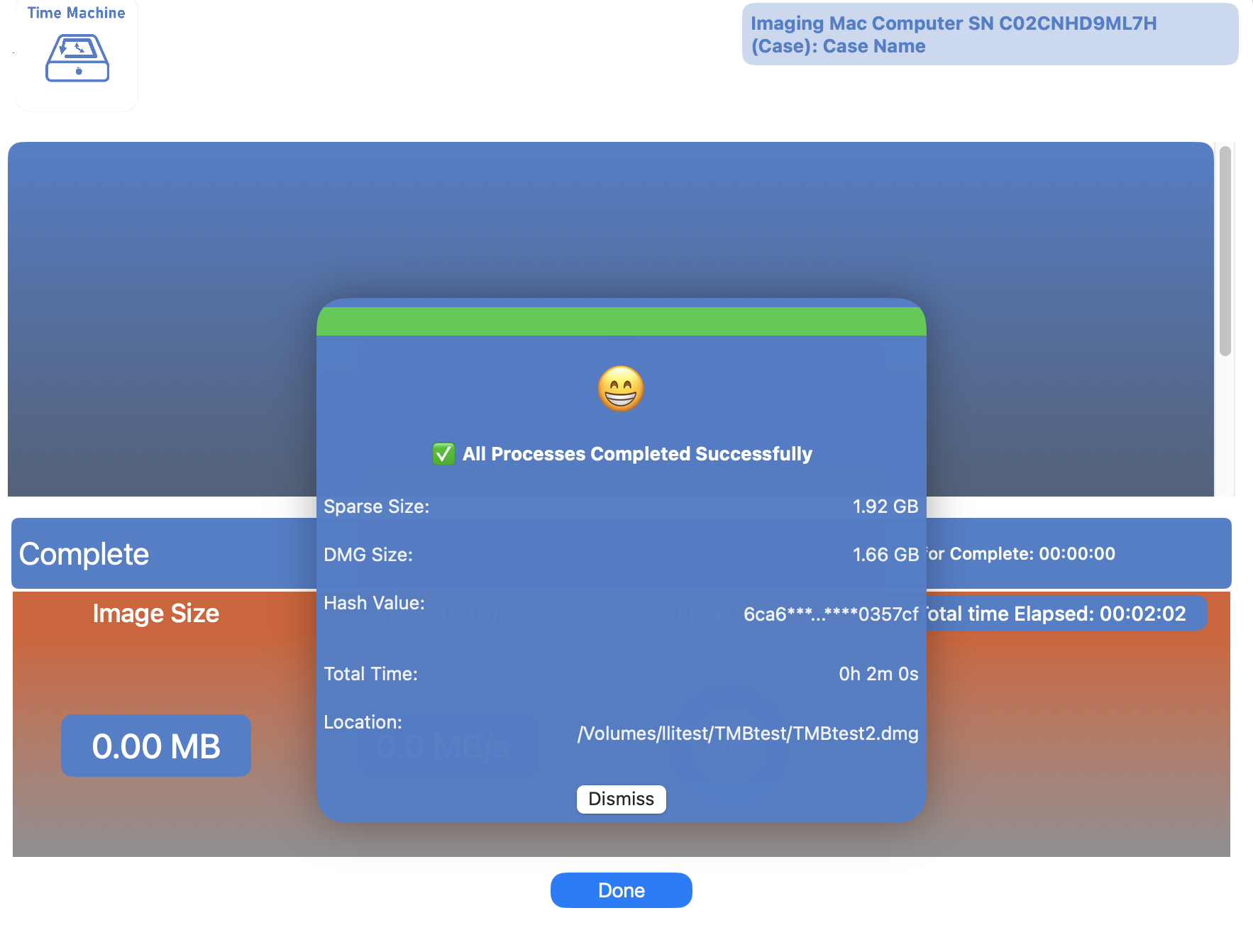
When complete, the following will appear:
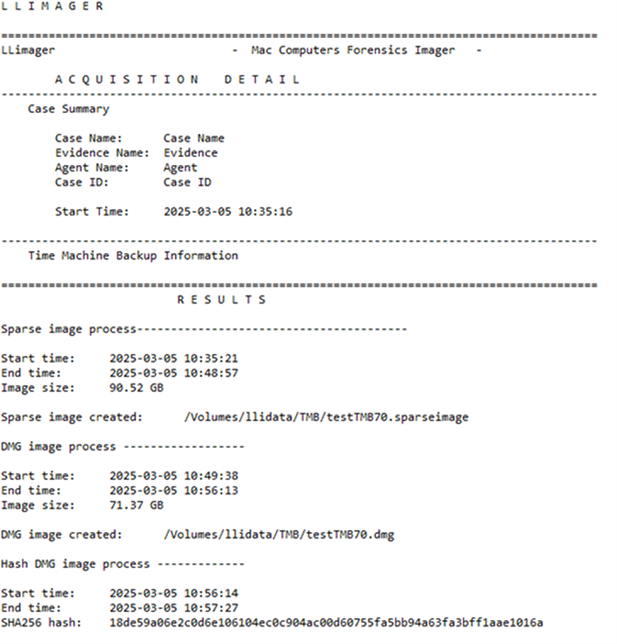
The produced acquisition log will appear as below: